
This activity enables the creation of a "New Folder" or a "New Sub Folder" within
the specified Outlook account.
Technical Reference
|
|
INPUT |
AccountName: Specify the name of the “Outlook account” from which the email needs to be accessed. This field accepts the value in "String" format. |
|
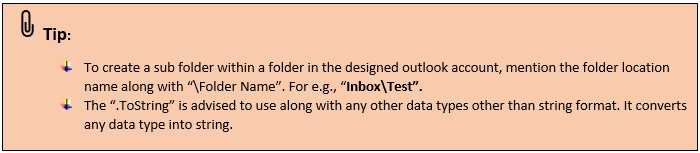
FolderName: This specifies the location of the "New Folder" to be created. Specify the "Folder name" where the new folder should be created in the designated Outlook account. Indicate whether a "Sub-folder" should also be created (see tips for specifying a sub-folder). This field accepts the value in "String" format. |
||
|
NewFolderName: This specifies the "name" of the folder in which it needs to be created within the specified Outlook account. Only “String” values are accepted. |
||
|
MISC |
DisplayName: Displays the name of the activity. The activity name can also be customized to help in troubleshooting. |
|
|
SkipOnError: It specifies whether to continue executing the workflow even if it throws an error. This supports only Boolean value “True or False”. By default, it is set to “False.” True: Continues the workflow to the next step None: If the option is specified as blank, by default the activity will perform as “False” action. |
||
|
Version: It specifies the version of the Email automation feature in use |
||
|
OUTPUT |
Result: It helps to view the execution state of the activity. It returns the values in Boolean format. True: It indicates the activity has been executed successfully without any error. False: It indicates that the activity has been faulted due to some unexceptional error thrown. |
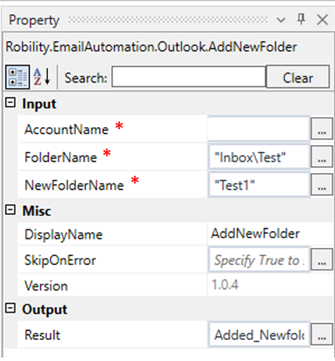
* Represents mandatory fields to execute the workflow

Click here to view an example of how the “AddNewFolder” activity is used in the
workflow.